Find your way around the Portal
The Portal layout - the community switcher, the sidebar, pins, Ctrl+K search, the folding sidebar and the assistant button.
New layout (closed beta): server pages have new places there. See Server pages in the new layout for where each tab went.
The Portal is built around one community at a time. The sidebar starts from the community you are working on, and everything that belongs to it is one click away.
The layout
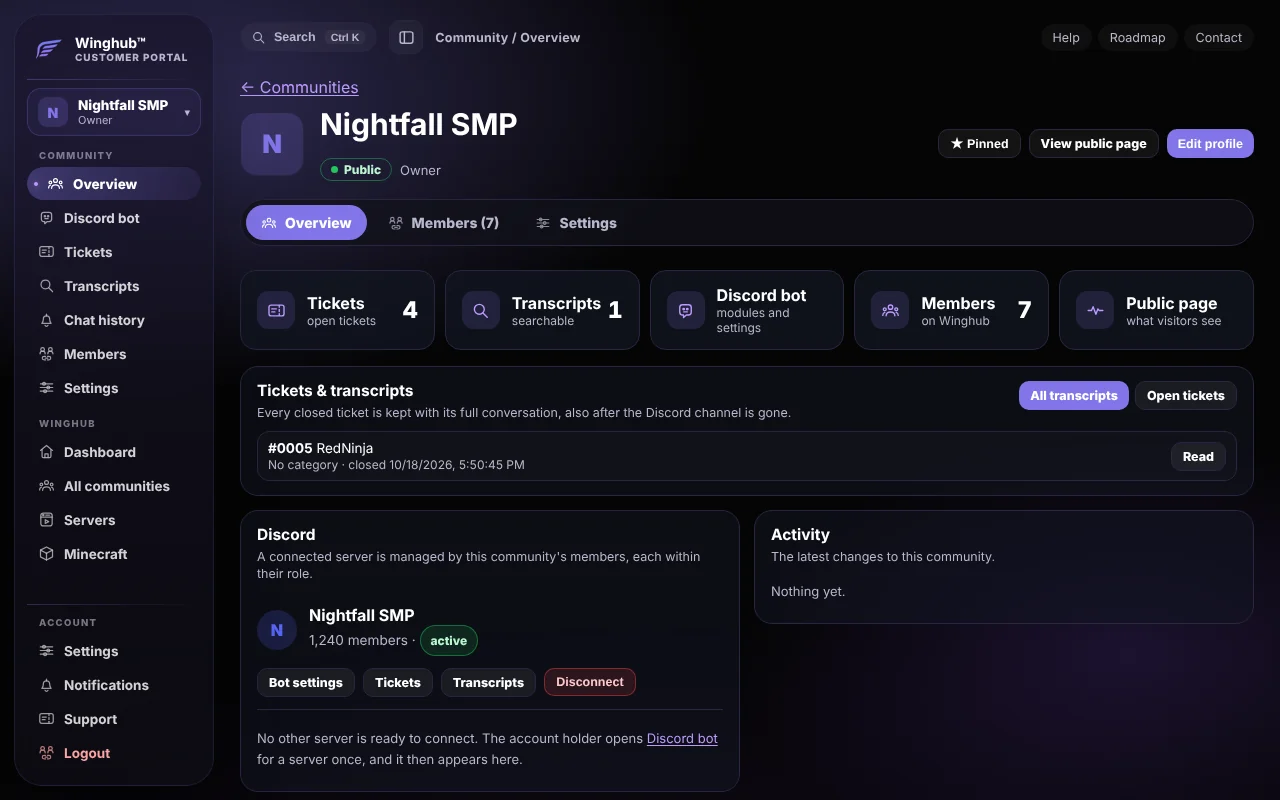
The Portal, open on a community. Recorded from the Portal with sample data.
| Sidebar group | What is in it |
|---|---|
| Community | The current community: Overview, Server (the server panel of a Winghub-hosted server, when it is on your account), Discord bot, and, once a Discord server is connected, Tickets, Transcripts and Chat history. Then Members and Settings. |
| Winghub | Pages across all your communities: Dashboard, All communities, Servers, Minecraft. |
| Account | Settings (your account, not the community), Notifications, Support and Logout. |
The top bar shows where you are (for example Community / Tickets) and links to Help, Roadmap and Contact.
Two items are both called Settings: the one under Community is the community's settings tab; the one under Account is your own account.
The community switcher
The box at the top of the sidebar shows the current community, its picture and your role in it.
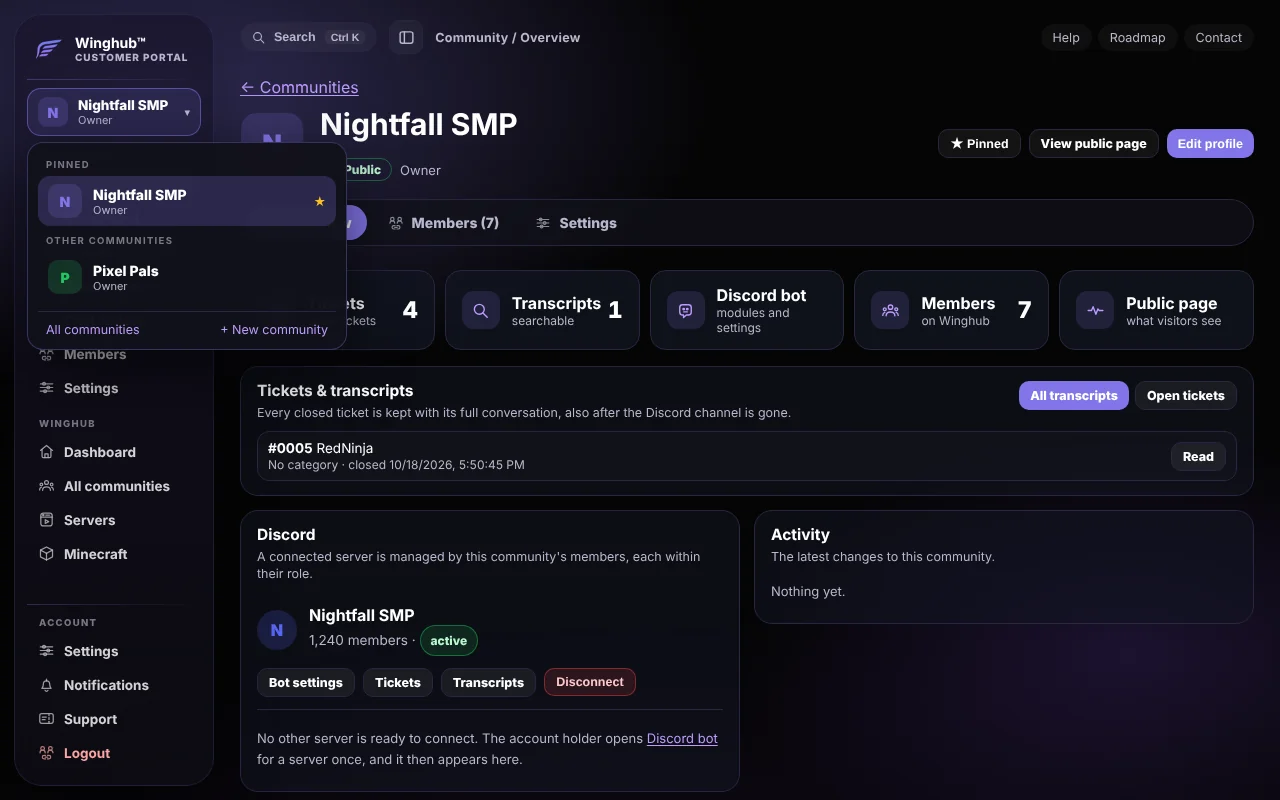
The community switcher, open. Recorded from the Portal with sample data.
- Click it to open the list: Pinned communities first, then your other communities.
- Pick a community. You stay in the same section: from one community's Tickets you go to the other community's Tickets, from Settings to Settings.
- At the bottom of the list are All communities and + New community.
The Portal remembers the current community between visits. Opening a page that belongs to a community, or to a connected Discord server, makes that community the current one.
No community yet? The switcher says No community yet - Create one to start.
Pins (up to 5)
Pin the communities you use most so they stay at the top of the switcher.
- Open the community page.
- Choose Pin at the top right. It changes to Pinned.
- Choose Pinned again to unpin.
You can pin up to 5 communities. Pins are personal: your co-owners have their own.
Search with Ctrl+K
Press Ctrl+K (Windows, Linux) or Cmd+K (Mac) on any Portal page, or choose Search in the top bar.
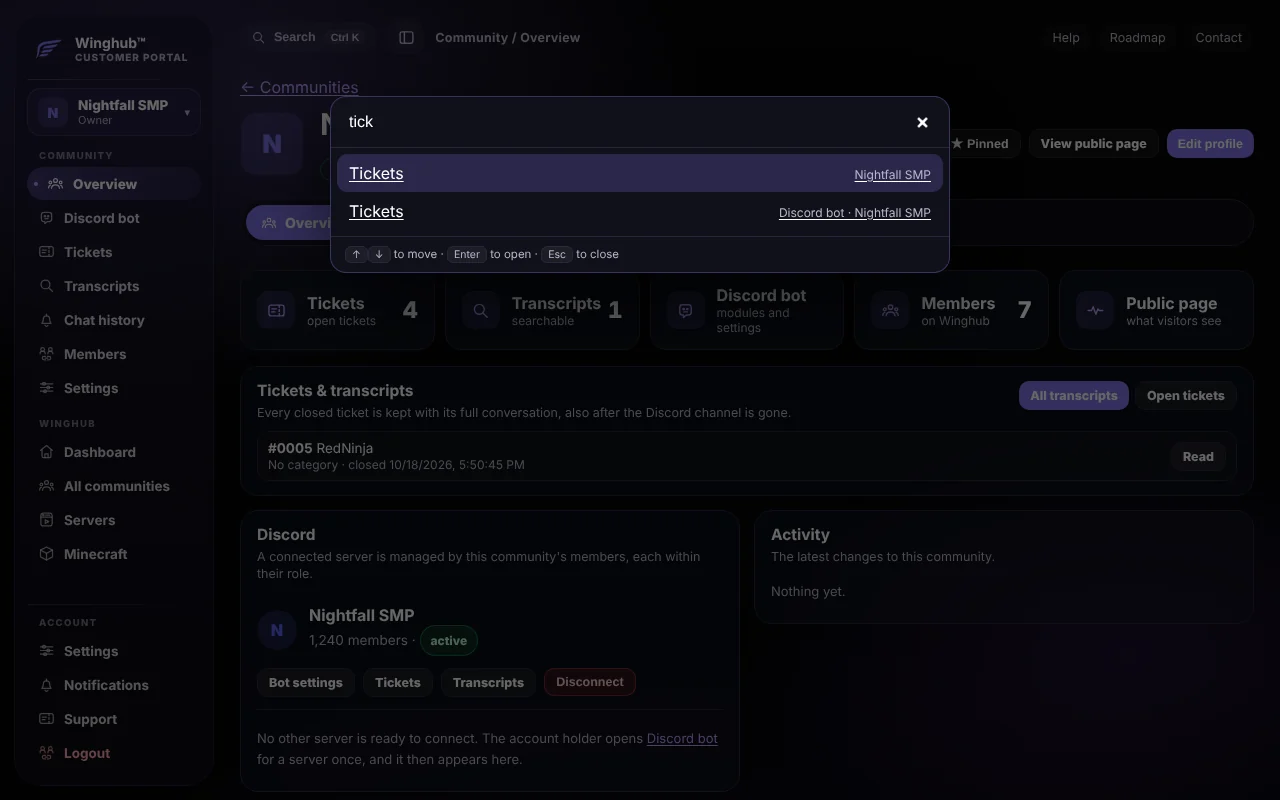
Search with Ctrl+K. Recorded from the Portal with sample data.
- Type to search pages, your communities, and the bot modules of the current community (for example Tickets or AutoMod).
- Up and Down arrows move, Enter opens, Esc closes.
- Open a .wh file is in the list too, for opening an exported ticket transcript.
Anything that is not available on your account is left out of the search, exactly like the sidebar.
Fold the sidebar
On a computer screen, the fold button in the top bar shrinks the sidebar to its icons. Hover an icon to see its name. Click the button again to bring the names back. The choice is remembered in this browser.
On a phone the sidebar is a drawer instead: tap Menu to open it.
The assistant
The round button at the bottom right opens Wynn, the Winghub assistant. Ask how something works, or ask Wynn to change a setting for you (you always allow it first). See Wynn, the AI assistant.
Where to find common things
| I want to... | Go to |
|---|---|
| See everything at a glance | Dashboard - see Dashboard |
| Change the bot | Community > Discord bot |
| Read a closed ticket | Community > Transcripts |
| Add a staff member | Community > Members > Add member |
| Change my password or turn on login codes | Account > Settings > Security - see Account settings |
| Get help from Winghub | Account > Support - see Getting help |
Some pages or menu items may not appear on your account. That is the Beta Center at work: see Feature statuses.
Last updated: 11/27/2026, 1:58:20 AM