A tour of the bot page
How the Discord bot page in the Portal is laid out - the server switcher, the module list, the overview groups, panels and windows, and modules that may be hidden.
New layout (closed beta): abilities, the Discord bot and tickets have new places there. See Abilities, the Discord bot and tickets in the new layout for where each page went.
Everything the Integration Bot does in a server is set up on one Portal page: Discord bot.
The layout
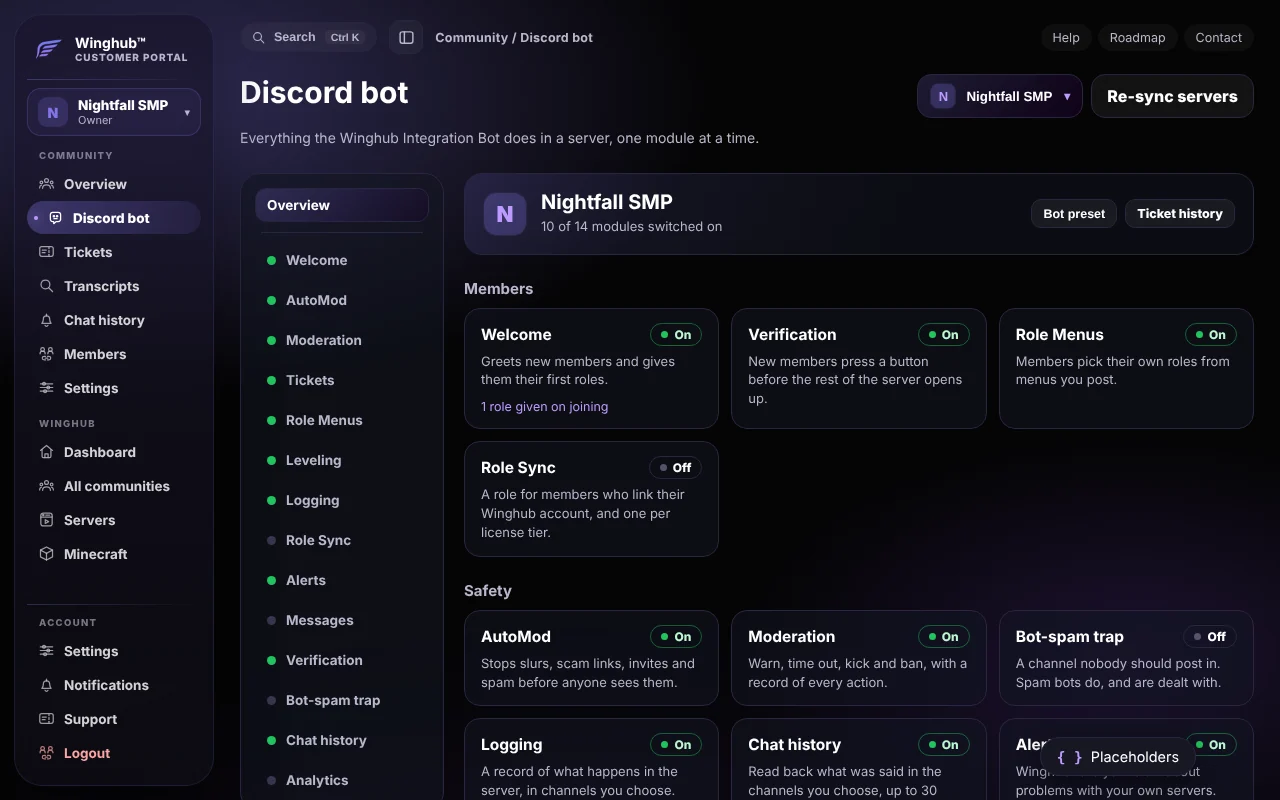
The Discord bot page. Recorded from the Portal with sample data.
On a phone the module list sits above the page instead of beside it.
The server switcher (top right)
Lists every Discord server you can manage, in two groups:
- Bot is in these servers, marked Active.
- Not added yet, marked Add bot. Picking one opens the setup steps from Invite the bot.
Re-sync servers asks Discord again which servers you manage. Use it after you made a new server or got Manage Server somewhere.
The module list (left)
- Overview at the top, then one line per module.
- The dot is green when that module is switched on in the selected server, and grey when it is off.
- A module under maintenance stays in the list with a down label. Its page says it is under maintenance and that your settings are untouched.
The Overview
The head shows the server's name and icon and how many modules are switched on ("4 of 13 modules switched on"). Two buttons sit beside it:
- Bot preset switches several modules on or off in one go. What you already built inside a module is kept. Some presets need a higher license tier and are shown as locked.
- Ticket history opens the transcripts of closed tickets.
Below that, every module you can see is a tile, grouped by what you are trying to do:
| Group | Modules |
|---|---|
| Members | Welcome, Verification, Role Menus, Role Sync |
| Safety | AutoMod, Moderation, Bot-spam trap, Logging, Chat history, Alerts |
| Engagement | Leveling, Messages |
| Support | Tickets |
Each tile has the module's name, an On or Off label, one line about what it is for, and sometimes one fact about your server, such as "3 menus" or "2 roles given on joining". A tile is a link to the module's page. A module that no group names yet appears under More.
A module page
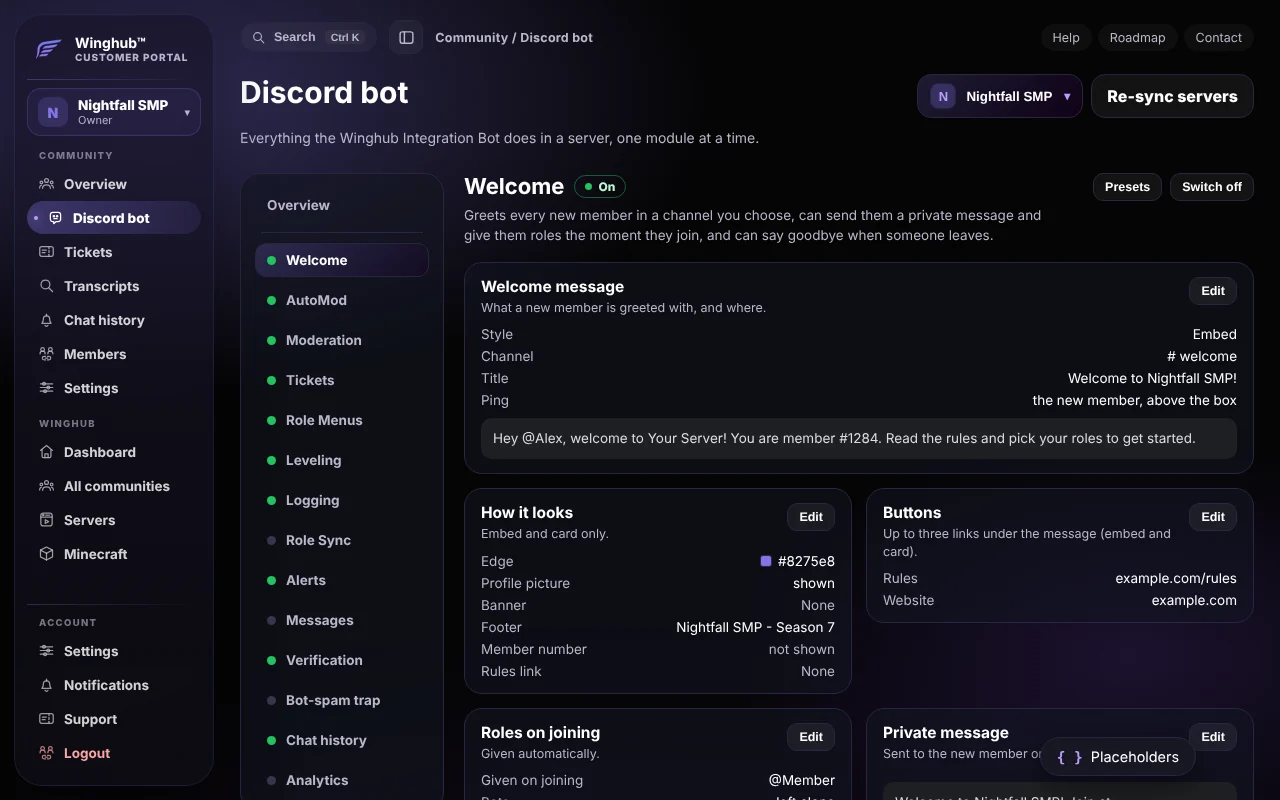
The Welcome module page. Recorded from the Portal with sample data.
- The head: the module name, On or Off, a one-line description, Presets (only for modules that have presets) and Switch on / Switch off.
- Panels say what is set right now, in words. Nothing on the page itself is a box to type in.
- Edit on a panel opens a window with only the settings of that panel. Save changes only those settings; everything else stays as it was.
- Presets opens a window with the module's presets and Reset to the chosen preset. It also says whether the module runs on the preset or on your own settings.
- Modules that post something that keeps itself up to date (a verification panel, a ticket panel, a trap warning) have a Posted in Discord panel: how many copies exist, Post in a channel, Update now, and per copy Open in Discord and Delete. Change the settings and every copy is edited in place.
Every text box the bot fills in has a row of placeholder buttons under it and a Members will see preview. The { } Placeholders button in the corner lists them all. See Placeholders.
Modules that keep a list
Role Menus and Messages keep several saved items. Their page lists them ("Your menus", "3 of 10") with Edit, Duplicate and Delete, and a New menu / New message button. Edit opens the editor: the panels on the left, a live Preview and Posted in Discord on the right, and All menus / All messages to go back. Deleting an item also deletes its copies in Discord.
When Winghub staff changed something
If Winghub staff had to change a module for support, legal or rights reasons, the page says so. Saving the module yourself replaces their change with your own settings.
Modules you may not see yet
Each module is controlled per account by Winghub's Beta Center: published, beta, or hidden. A hidden module is simply not in your list. These ship hidden until Winghub opens them, so they may not be available on your account yet (Beta Center):
- Messages
- Verification
- Bot-spam trap
- Chat history
- Analytics
- The message content log inside Logging
A bookmarked link to a hidden module shows "This feature is not available on this account." A button in Discord from a module that is hidden or under maintenance still answers the member, so it never looks broken.
Who can use this page
- In Discord: anyone with Manage Server on that server.
- Through a Winghub community role: Admin or higher can change bot settings; Co-owner or the account holder can add or remove the bot; a Moderator only sees Ticket history. Link your Discord account first.
Changes you save reach the bot within about a minute.
Last updated: 11/27/2026, 2:41:55 PM