The community page
A tour of the community page and its three tabs - Overview, Members and Settings.
The community page is where you run one community; it has three tabs and every change opens in a window.
The header
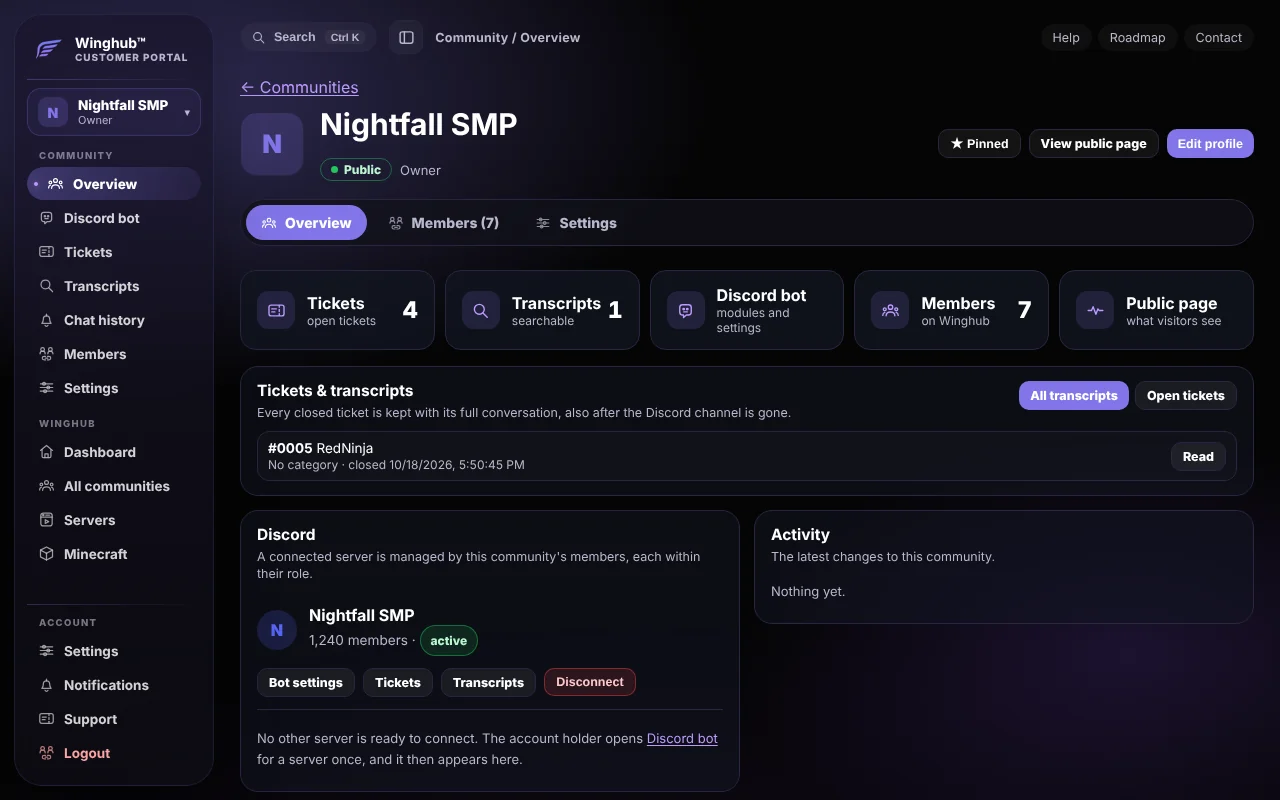
The community page of a sample community. Recorded from the Portal with sample data.
- The avatar, name, up to four category tags, Public or Private, and your own role.
- Pin keeps the community at the top of the switcher. See The community switcher and pins.
- View public page appears when the community is listed publicly.
- Edit profile appears if your role may change the public profile (Admin and up).
If the community is archived, a notice at the top says until when it is kept, with a Restore this community button for the owner.
Overview tab
The everyday view.
| Part | What it shows |
|---|---|
| Tiles | Quick links with a number: your Winghub-hosted server (players online and its state, or Servers when there are several), Tickets (open tickets), Transcripts, Discord bot, Members and Public page. The server tile only appears for a Winghub-hosted server; tiles for tickets, transcripts and the bot only once a Discord server is connected. |
| Live map | A live map card per Winghub-hosted server whose owner switched on Show on the community page (Integrations > Live map). See Live map. |
| Tickets & transcripts | The latest closed tickets with a saved conversation, per connected Discord server, with All transcripts and Open tickets buttons. Shown when you may read tickets (Moderator and up). |
| Discord | Connected Discord servers with Bot settings, Tickets and Transcripts buttons, plus Connect and Disconnect for Co-owners and up. See Connect Discord servers and game servers. |
| Activity | The latest changes made to the community (members added, settings saved, servers connected). Open Show the latest to read them. |
Members tab
| Part | What it shows |
|---|---|
| Members | Everyone in the community with their role and title. Add member, Change and Remove appear if your role allows it. The account holder is marked Account holder; members you are not allowed to change are marked Protected. Removed members are shown dimmed. |
| Roles | Show the role guide: a short description of each role. |
See Add members with a join code and Roles and permissions.
Settings tab
| Part | What it shows |
|---|---|
| Profile & settings | Name, categories, whether you are listed in the directory, your public address, summary and internal description. Edit settings changes the name and internal description; Edit public profile changes everything visitors see. |
| Staff verification | Which Discord role(s) your staff must have to count as staff. See Roles and permissions. |
| Servers & services | Records of your game servers, Discord, website and more, with their status. Archived records are listed under a fold and can be restored. |
| Danger zone | Archive community and Delete for good. Only the account holder sees this panel. See Archive, restore and delete. |
Settings explained
| Setting | Window | What it does | Who can change it |
|---|---|---|---|
| Name | Edit settings | The community name everywhere. Up to 100 characters. | Admin and up |
| Internal description | Edit settings | A note for your team. Not shown on the public page. Up to 1000 characters. | Admin and up |
| Public profile fields | Edit public profile | See Public profile and the directory. | Admin and up |
If you can only look
A Viewer (and a Moderator, outside tickets and service status) sees the page without the buttons, with the note "You can view this community; changes are limited by your community role."
Last updated: 10/25/2026, 11:15:09 AM