Roles and permissions
Your own community roles - name, colour, order and exactly what each may do - who can give which role, and how roles reach the Discord bot.
New in V0.114.0: you build the roles. Every community starts with five roles (Co-owner, Manager, Admin, Moderator, Viewer) with the rights described further down. You can rename them, recolour them, change what they may do, add your own (up to 25) and delete them.
  Account Holder   always on top, always everything (licence, archive, ownership)
  ─────────────────────────────────────────────────────────────
  your roles, highest first      each: name · colour · ticked permissions
Where: your community > Members > Roles. New role adds one at the bottom; the arrows move it.
Several roles per member. Open a member and tick their roles; their rights add up.
The safety rules:
- You only edit, move, give or take roles below your own highest role.
- You only tick permissions you hold yourself. One you do not hold stays as it was.
- You cannot change your own roles. The Account Holder cannot be given or lose a role.
- A member with no roles at all is a Viewer.
What you can tick: Community (see it, settings, public profile, members, roles, service records, service status), Discord (tickets, bot modules, connect Discord) and Server panel, one per feature: see the server, start/stop/restart, read the console, console commands, kick/ban/whitelist, OP, move and take items, staff safe, options, files, join address, backups, restore a backup, delete a backup, schedules, integrations, activity logs, staff log, mods, world.
The starting roles: Moderator and up can see the server, use the power buttons, read the console, kick/ban/whitelist and read the activity logs; Admin and up get the rest except files, restoring and deleting backups, which start at Co-owner. In-game Winghub Link permissions (staff levels, /wh commands) are set separately on the server's World tab; see Permissions and protections.
Every change is in the community's audit log.
Staff verification
Community > Settings > Staff verification lets Discord decide who counts as staff. Tick the Discord role(s) staff must have in your connected Discord server; any one is enough. Nothing ticked means off.
- It applies to every role except Viewer. A member without a connected Discord account and one of those roles acts as a Viewer until it is fixed, and sees a banner saying their role is not active.
- When the role is taken away or given back in Discord, it takes effect within seconds and is written to the audit log.
- The Account Holder is never checked.
- Needs a connected Discord server, and the Roles permission (or the Account Holder) to change it.
The five starting roles
What follows describes the five roles as every community gets them. Once you edit them, your own settings apply.
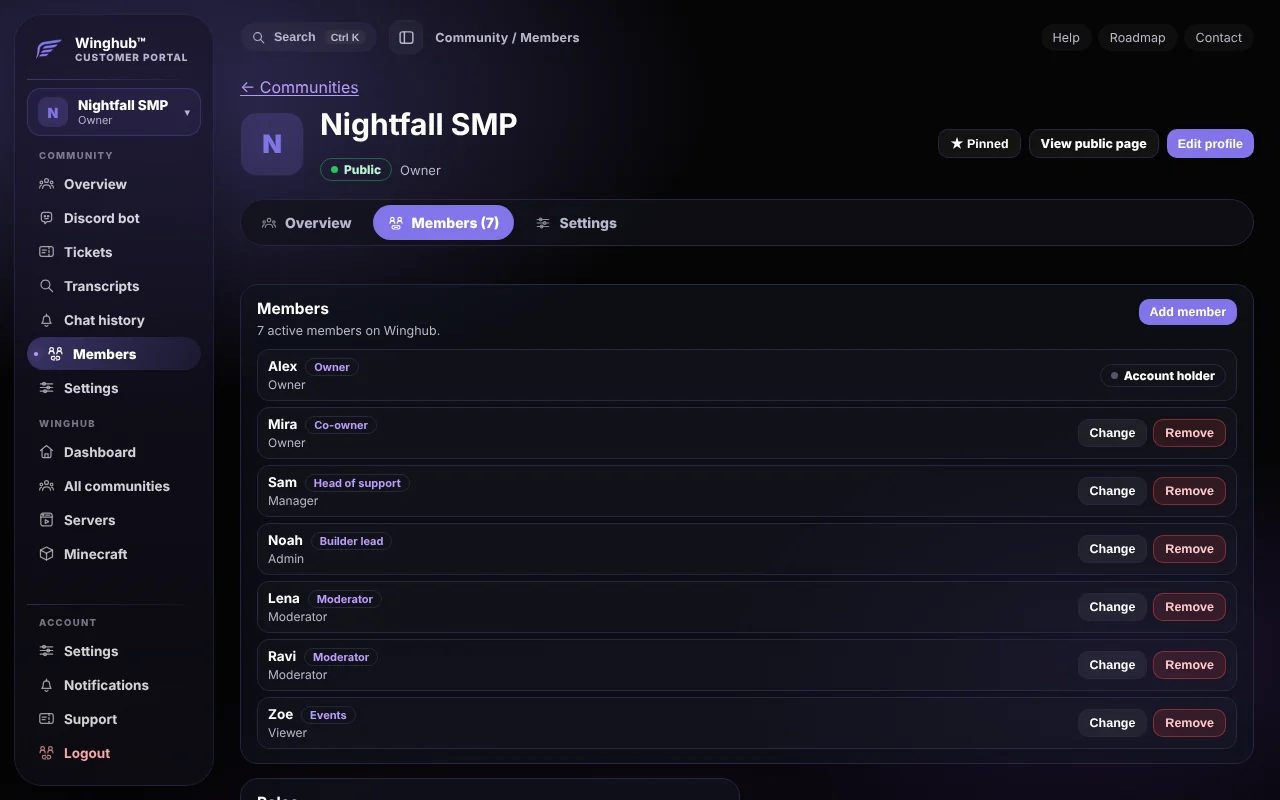
The Members tab. Recorded from the Portal with sample data.
The six roles, highest first
  Account Holder   the real owner and license holder         (exactly one)
  Co-owner         runs the community day to day             (Pro / Enterprise)
  Manager          settings, profile, bot, most members
  Admin            settings, profile, bot, moderators and viewers
  Moderator        tickets and transcripts, service status
  Viewer           read only
On public pages the account holder and co-owners are both shown as Owner.
What each role can do
| Action | Account holder | Co-owner | Manager | Admin | Moderator | Viewer |
|---|---|---|---|---|---|---|
| Open the community page | Yes | Yes | Yes | Yes | Yes | Yes |
| Read Discord tickets and transcripts of connected servers | Yes | Yes | Yes | Yes | Yes | - |
| Update the status of a service record | Yes | Yes | Yes | Yes | Yes | - |
| Change name and internal description | Yes | Yes | Yes | Yes | - | - |
| Change the public profile | Yes | Yes | Yes | Yes | - | - |
| Add, archive and restore service records | Yes | Yes | Yes | Yes | - | - |
| Configure the Discord bot (modules, presets, channels) | Yes | Yes | Yes | Yes | - | - |
| Add, change and remove members (see below) | Yes | Yes | Yes | Yes | - | - |
| Connect or disconnect a Discord server, invite the bot | Yes | Yes | - | - | - | - |
| Assign or remove co-owners | Yes | - | - | - | - | - |
| Archive, restore and delete the community | Yes | - | - | - | - | - |
| The license | Yes | - | - | - | - | - |
Who can give which role
| Your role | Can give |
|---|---|
| Account holder | Co-owner, Manager, Admin, Moderator, Viewer |
| Co-owner | Manager, Admin, Moderator, Viewer |
| Manager | Admin, Moderator, Viewer |
| Admin | Moderator, Viewer |
| Moderator, Viewer | Nothing |
Two more rules:
- You can only change or remove someone below you. A Manager can change an Admin but not another Manager. The account holder can change anyone.
- Nobody can change or remove the account holder, and you cannot remove yourself from the members list.
Co-owners
A co-owner can do almost everything the account holder can, but cannot touch the license, archive or delete the community, or change who the account holder is.
- Only the account holder assigns co-owners.
- The account that owns the community needs an active Pro or Enterprise license (a trial or grace period also counts). Otherwise you see "Co-owners need a Pro or Enterprise license on the account that owns this community."
- Co-owner is a promotion, not a starting role. Add the person first (for example as Manager), then open Change next to their name and choose Co-owner.
How roles reach the Discord bot
Once a Discord server is connected to the community, the roles above also work on that server's Integration Bot in the Portal:
  Moderator and up   ->  tickets and transcripts
  Admin and up       ->  bot modules, presets, channels
Co-owner and up -> connect / disconnect the server, bot invite- Anyone with Manage Server in Discord can always manage that server's bot directly, with or without a community role.
- To change the bot through a community role you must link your Discord account first (Settings, then Connections). Changes made that way are recorded against your Discord identity.
- If one Discord server is connected to several communities, your reach is your highest role among them. Roles never add up.
- Disconnecting the server, removing the member, or archiving the community ends that reach straight away.
See Connect Discord servers and game servers.
Titles
Besides a role, each member can have a free Title (up to 80 characters), such as "Head builder". It is a label only and gives no rights.
Last updated: 10/25/2026, 11:15:09 AM