Verification
A panel with a Verify button that opens your server to new members - by a button press, a typed code or a question - with account-age checks, a record and a private message.
New layout (closed beta): abilities, the Discord bot and tickets have new places there. See Abilities, the Discord bot and tickets in the new layout for where each page went.
Verification posts a panel with a button. A member who presses it (and types a code or answers a question, if you ask for one) receives the roles you choose, which usually open the rest of the server.
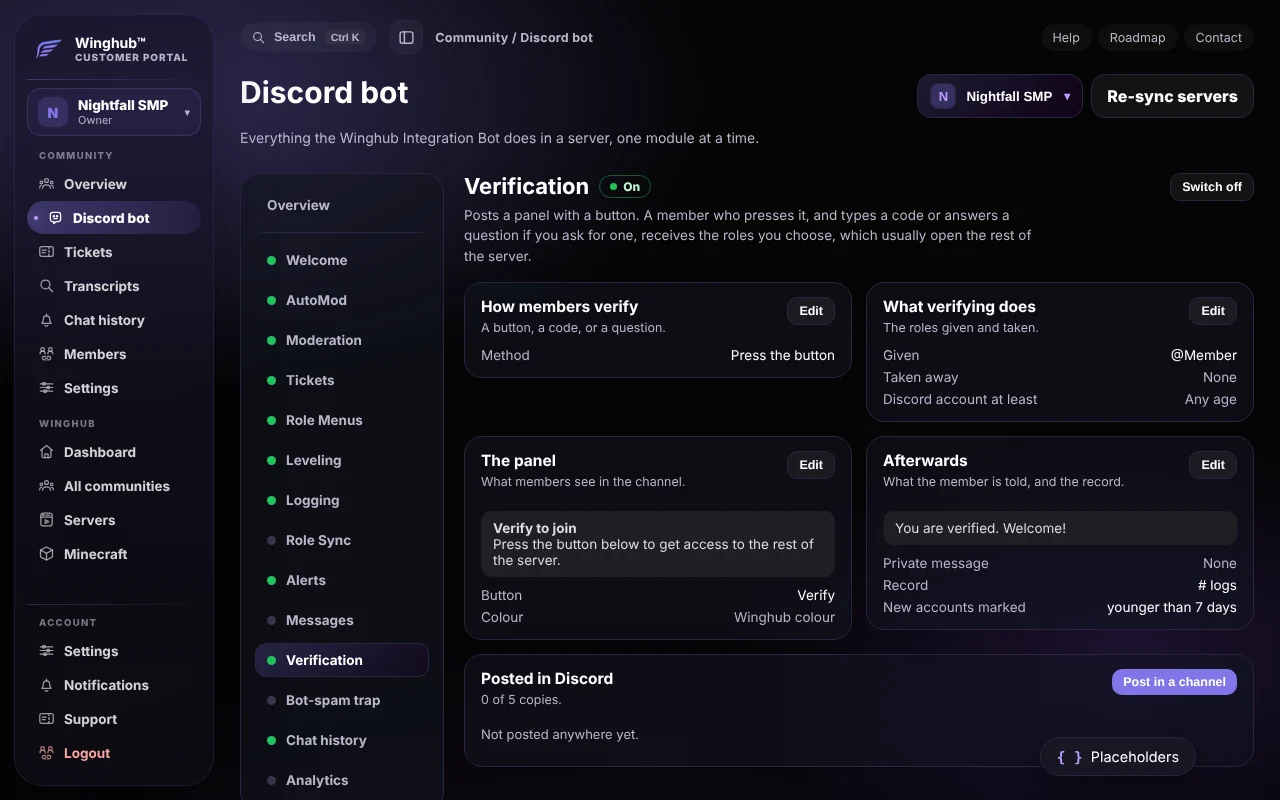
The Verification module page. Recorded from the Portal with sample data.
Verification ships hidden and may not be available on your account yet (Beta Center).
How it works
  new member sees only #verify
        |
        v
  presses [Verify]
        |
        +-- Press the button ....... done
        +-- Type a code ............ a small form: "Type this code: K 7 P 2 Q"
        +-- Answer a question ...... a small form with your question
        |
        v
  checks: account old enough? already verified?
        |
        v
  gets "Verified"  ->  "Unverified" is taken away  ->  the server opens up
        |
        +--> "You are verified. Welcome!"  (only they see it)
        +--> a line in your record channel (new accounts marked)
        +--> optional private message
The bot needs Manage Roles, and its own role must sit above every role it gives or takes. See What the bot needs.
Set it up
- Prepare your roles in Discord. A common setup: - a Verified role that can see your channels, while
@everyonesees only the verify channel; or - an Unverified role given on joining (with Welcome, Roles on joining) that hides the channels, and is taken away on verifying. - Open Discord bot, your server, then Verification, and Switch on.
- What verifying does, Edit: pick Roles a verified member receives and, if you use one, the role under Roles taken away on verifying.
- How members verify, Edit: pick the method.
- Optional: change The panel and Afterwards.
- Posted in Discord: Post in a channel, and choose your verify channel.
Change the settings later and every posted panel is edited in place. Up to five copies can be posted.
The three methods
| Method | What the member does | Good for |
|---|---|---|
| Press the button | Presses Verify. | Making members read the channel first. |
| Type a code | Presses Verify, then types the five characters shown in a small form. | Stopping the simplest bots that join and click everything. |
| Answer a question | Presses Verify, then answers your question, such as "What is rule 3?". | Making members read your rules. |
Codes use no look-alike characters (no 0 or O, no 1, I or L), work for ten minutes, and are typed in any case. A wrong or expired code asks the member to press the button again for a new one. A restart of the bot forgets open codes; the member simply presses again.
Answers are compared without caring about capitals or extra spaces. List several accepted answers, one per line or separated by commas. If you set no answer at all, nobody can verify, and the member is told so.
Every setting
How members verify
| Setting | What it does | Default |
|---|---|---|
| How a member verifies | Press the button, Type a code, or Answer a question. | Press the button |
| The question | Up to 45 characters: Discord's limit for a form. | What is the first rule of this server? |
| Accepted answers | One per line, or separated by commas. Capitals and extra spaces do not matter. | Empty |
| What a wrong answer is told | The private reply to a wrong answer. | That is not the right answer. Read the rules and try again. |
What verifying does
| Setting | What it does | Default |
|---|---|---|
| Roles a verified member receives | Up to 5 roles. The bot's own role must sit above these. Roles that can moderate or manage the server are not offered. | None |
| Roles taken away on verifying | Up to 5. For an "Unverified" role handed out on joining. Taken only after the new roles were given. | None |
| Minimum Discord account age in days | 0 lets everyone verify. A younger account is told when it can try again. | 0 |
With neither roles to give nor roles to take, the panel answers "Verification is not set up yet. Tell the staff."
The panel
| Setting | What it does | Default |
|---|---|---|
| Panel title | The bold line of the panel. | Verify to enter |
| Panel text | The text under it. | Press the button below to get access to the server. |
| Button label | Text on the green button. | Verify |
| Button emoji (optional) | Any emoji, or one of your server's own. Empty shows the Winghub verified badge. | Winghub verified badge |
| Panel colour (optional) | The edge of the panel. | Winghub colour |
Afterwards
| Setting | What it does | Default |
|---|---|---|
| What the member is told afterwards | The private reply after verifying. | You are verified. Welcome! |
| Send a private message after verifying | Also sends the message below to the member. | Off |
| Private message | Supports placeholders such as {user}, {username} and {server}. | You are verified in **{server}**. Have fun! |
| Channel that records each verification (optional) | A line per verification: who, how (button, code or question) and when their account was made. Nobody is pinged. | None |
| Mark accounts younger than this many days in the record | 0: never. The member still gets in; staff just see "New account" in the record. | 7 |
What members see
- The panel in your channel, with the button.
- Every answer from the bot is private: only that member sees it.
- Possible answers: verified; "You are already verified."; "Your Discord account is too new to verify here. You can try again" with the time; the wrong-answer text; or a short message that something is not set up.
The record
With a record channel chosen, each verification posts "Member verified" in green. An account younger than Mark accounts younger than this many days posts "Member verified (new account)" in amber, so staff can keep an eye on it. Nothing is blocked by this mark; use Minimum Discord account age in days to actually keep young accounts out.
Limits and troubleshooting
- "The bot could not change your roles." The bot's role sits below a role it must give or take. Drag it up in Server Settings, Roles.
- "Verification here is set up with a role that can moderate or manage the server." The bot never hands those out. Pick a normal role.
- "The bot is still starting up for this server." It has not loaded your roles yet. Press again a moment later.
- "Discord could not be reached, so you are not verified yet." Nothing was changed. Press again in a moment.
- The post button is missing. Switch the module on first; a panel cannot be posted while Verification is off.
- Members who never verify are not removed automatically.
Last updated: 11/27/2026, 2:41:55 PM